Showing posts with label Below Deck. Show all posts

Saturday, 13 June 2015

When one doors closes another must open, But lets just learn to open one first

While navigating the level there are many doorways without doors.

My intention for this level is to now create some game elements to create a more enjoyable and immersive experience for the view of the environment. I intend for a lot of things to become interactive withing the level. and the first thing that seems most obvious is the doors.

After Modelling the doors to be used in the level, I next turned them into Blueprints so i can control and add properties and function to them through the event graph.


This First part of the event graph allows the player to input a key press as a way to open the door when inside the doors trigger. The Trigger is show in the next image by the Pink box.


Once the player enters the Trigger they will be able to press a key on there keyboard or controller and open the door. For now i have just used the E key and no controller button inputs. Later this will be changed for full controller functionality.


This next part of the Blueprint animates to the door to Open if Closed or Close if Open

This method uses a timeline node to edit simple transform properties of an object. This saves me having to use an animation blueprint for the Open and Close animations and allows for door collision to change as the door state changes.

Friday, 12 June 2015

Fighting System

After Creating the Character controller and setting up the animations the ease using the Logic brick system became encouraging and fun to use. So now that most of the modelling for the environment is done I've decided to create a simple fighting system. To get the feel for how ill do this i started by creating a 3 hit combo attack. If the player attacks each click will see the character strike. When timed close enough each attack will stream one from one another in a series of strikes.

This section of the characters Blueprint controls the attacking. The top chain sets information for the animation graph to use and if the player is attacking. The Next section controls how far through the combo the player is. The Final part controls the timing of the button presses so the second section knows weather to end the combo or to continue it.


Wednesday, 3 June 2015

Download Link

The Full level is Together so I thought id post an update to the download link for the Build.

Download:
https://www.dropbox.com/s/p0136k71pplr0lx/JordanWaka_N8816417_HostileWaters.zip?dl=0

Saturday, 30 May 2015

The First Mate

Unreals logic brick system make things so easy when setting up a character. And with the power of the "" engine animations are too implemented seamlessly :-)
In the past few years of learning game development techniques setting up a working character has always been a tedious process. Only recently has the process become so much easier and im so happy it has.


Friday, 22 May 2015

Scene light

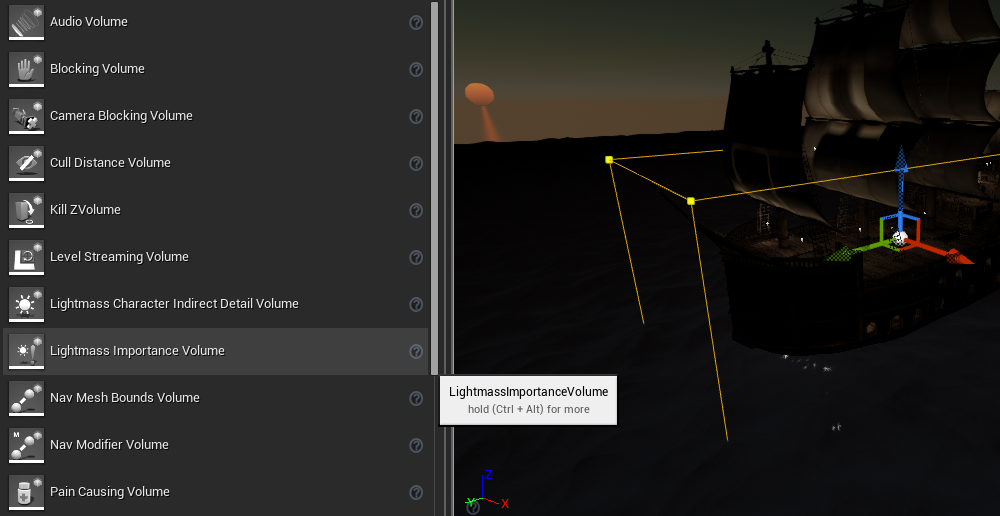
While constructing the scene, i noticed that after adding the water into my scene that the lighting after baking lost alot of its quality unsure why i googled it and found out afew interesting things. The one most important to me was Importance Volumes. Lightmass will calculate the light based on the whole scene, calculating bounce lighting etc for more realistic lighting. Now that larger the scene the more complex the baking becomes so the quality level soon drops to keep Lightmass from crashing. To prevent this Lightmass Importance volumes should be used to tell Lightmass where the most important areas of the level are so it can calculate that volume with more detail then the rest of the level.   


Tuesday, 19 May 2015

Rooms

This is a link to the main cargo room I have created based loosely off the concept art. So if you are interested in checking it out instead of looking at images feel free to take a look.
The following series of images are progress shots of other rooms.


Thursday, 14 May 2015

Construction

After that last post with lotsvof writing I think more pictures of my progress is needed to balance out the blog XD so enjoy :D


Tuesday, 12 May 2015

Lighting Errors

When Lighting the environment I came across a lot of issues based off of my work flow that that i was not expecting. However with a little research and piecing together prior knowledge it was prettying simple to solve for most of them. 

The First issue i came across was light map resolution after baking, the shadows where very blurred and unclear. This was due to my choice of work methods and texturing methods. As Im using 4K texture Atlases for my models, only a small portion of the map made up the whole unwrap for the models using it. This is fine of the texture as its resolutions 4K (4096x4096 pixels) so the portion the UVmap occupies is around 512x512 to 1024x1024 pixel data for the models texture which is enough for the model to look fairly high res. However within unreal the Light/Shadow map is by default set to 64x64. This is usually fine for most objects assuming they use a UVmap that takes up the whole space. So in proportion to the texture size the light map was effectiving only texturing a area of 8x8 to 16x16 pixels. A dramatic difference to the texture. 

My quick fix to this problem was to simply bump up the Light map Resolution however later I encountered more problems that with a new solution implemented would fix both problems at the same time..

The second issue was more to do with the shadows not looking correct even with a bumped up resolution. Working out what was wrong was difficult and really i was stumped until I baked the scene and noticed something interesting. All modular floor tiles where light up the same with identical shadows. It was a strange error but seeing it made me realise that the uv coordinates that where being used for the model had overlapping sections. This wasn't the reason for all the modular pieces sharing the same lighting but it made me realise why I was getting lighting issues. As one part of a model was being light another part sharing the same uv coordinates had a shadow cast over it. This caused both the side in the light and the side in the shadow to render with a shadows. 


So to resolve this i created a second Uv map for the model the fixations containing texturing coordinates and the second lightmapping Coordinates.This fixed both issues as the lightmapping Coordinates use up more uv realestate allowing for more higher res shadows without needing to scale up my lightmaps.


Wednesday, 6 May 2015

New Workflow

After working on this project for and creating asset after asset refinement on my work flow was bound to happen. As I am the texture artist and Modeller of my own assets I've recently found it easier to great textures for all my assets before modelling them then if needed going back an refining the texture if any modelling changes that where unanticipated happen. This has only been easier as my current method is to use atlas textures for multiple models. In the same way a painter has a swatch or palette of different colors, I create myself a palette of different textures. This makes unwrapping process a lot easier, faster and more enjoyable overall as i can see instant feedback as to how the texture is being applied.

Thursday, 30 April 2015

Assets creation is never over

Just when you think your finished modelling assets you realize that you need something else. This is my process on everything, I will make an asset list to later realize I missed something. This is important for new environmental artist to understand, if you finish your environment, have time left over and you feel there's stuff missing then your not finished so don't accept it as finished.
After greeting the cargo Bay I realized that most of the assets I used in here won't make sense in other places on the ship so i had to think of what I needed. But I couldn't truly know until I had built the while level so that's what I did. Now my assets list has grown dramatically.

Stern Steering 
  • Wheel
  • Crows nest
  • Fort Castle Front and Back

Bow Variations - 3 Heights, Windows and no Windows
Stern Variations - 3 Heights, Windows and no Windows
Bow Sprit - Fits all Bow Variations, 3 Variations Each size.

Storage
  • Pullies ropes and Hooks
  • Ladders
  • Cargo

Office and Rooms
  • Desk
  • Compass, Desk Lamp
  • Maps, Papers, Drawing Tools, Books
  • Hammocks and Beds
  • Gold
Galley

  • Candles, Plates, Kitchen Utensils
  • Fruit, Breads, Meats

Brig
  • Cell Doors
  • Cell Bars
  • Bench


Saturday, 25 April 2015

Reflection

While Building the first room a few posts back the process was pretty simple and almost all the pieces connected seamlessly. Now that I've created more modular assets I learnt what needs to be modular and what doesn't. But not just in a sense of making a modular ship but making modular parts for anything. Like Lego having a variety of pieces can be liberating and give you more freedom when building the level, It can also slow down you productivity because your spoiled with options. I've learn't that there's a fine balance between too many pieces and too little. Think of it like this, If i wanted to get really refined i could model every single wooden plank in every variation but that would be impractical. Tho in my case having the option to build a left and right side of a ships hull separately for this project is impractical so now i have created very large ship pieces that do not need as much customization. While leaving the inner modular room creation as is.


Tuesday, 21 April 2015

Masts and Sails


Finishing up the ships pieces with arguably the most important part is the ships, that being sails and masts. While modeling these I learn't quite about about how the ships rigging works and what each line does. In the future ill add more variations but at the moment the simple square and lug sails allow for most ships to be created. I also learnt the names of each of the sails and mast names i find it important to learn as much as you can when modelling or designing something that either based in the real world or Based off something in the real world. The Designs become more accurate and and believable to the audience as the design makes sense even if it wouldn't work in the real world.

Saturday, 18 April 2015

Ship Hull Parts

Finally All Below Deck Assets have been complete and ready from import to Realtime. Now its on to expanding the Project and i will be creating a vastly larger set of assets ready to be using in building not just a ship but Buildings, Land formations and Islands, plus much much more.


Sunday, 12 April 2015

Presentation and Displaying your work.

Presentation has always been the biggest thing for me when displaying my work. The time spent creating a 3D modeling or painting a beautiful work of are can be a complete waste if it is presented poorly. In this post I'm going to go over how i present my work and tips on how you may be able to improve them presentation of your own. I will be looking at presentation for 3D models etc but the principles will carry over to any medium.

Camera Angle

The First step is Understanding what your going to be presenting and capturing it from the best angle. This can vary depending on what you wish to show off. In my case i want to show off as much of the assets as i can. But you might just want to show off the textures normal map or texture detail these will all require there own thought as to the angle.


Environment and Lighting

Now that i know the angle next is to great an environment that compliments what I'm looking to show off. So the first thing is Lighting the subject. I want as much of the object shown as i can so ill be using a simple Hemisphere light, this will cast even light over the scene showing off all of the object. The next thing to make up the environment is a Floor, Room or stage. I like to use what is known as an Infiniroom, a room that goes on forever and is sterile and clean.

To create an Infiniroom, simply create a Large circle as the floor of the room, and then Extrude the Walls up to the height you desire. This can be changed later for a variety of different situations.

Next move the room so that the object is inside and sits on the floor grounding it, giving the viewer a sense of its place in 3D space. This can be re-enforced by use of a shadow too. Now you might be wondering why i said to position the object in the camera first. This is just my method as i make the environment around the camera view. But its all about preference, you can create the infiniroom first, place your assets inside and then work out a good camera angle both ways are fine.


Wire Frame Rendering

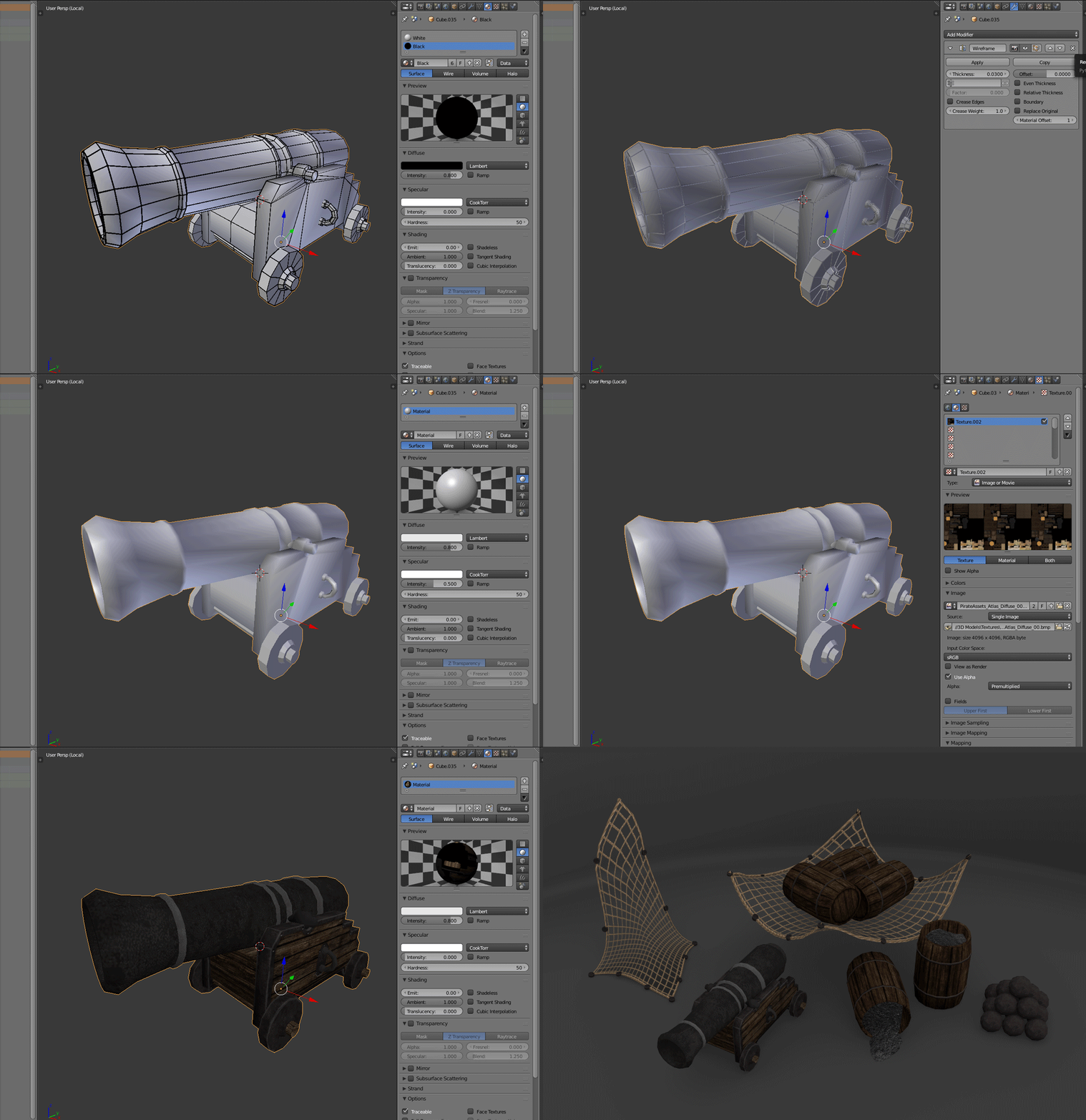
For the last step is Rendering. For this i want two different renders. One of the Model in wire frame and another of the Model with textures applies. For each of these my environments are gonna vary slightly so we need to do is set up the materials differently for each render.

First i'm going to render out the Wireframe. (If you are using another software like Maya or Max Check out these links to learn how to render out the Wire frame there are a lot of tutorials out there on how to do this. (Maya, 3DSMax)

To do this in blender you need to apply a modifier to your model this is temporary and will need to be deleted later. In the Modifiers stacker there is a modifier called Wire frame. Select this and you'll notice your model changed and looks like a spiderweb. This is the wireframe, in the modifier settings we want to uncheck "Replace Original"and change the material Offset to "1". You will now see your Model and its wireframe but they are the same colour. The next thing we need to do it change its materials.


With the model selected we want to apply a white material to it as the base for the model. (This will be "Material Offset 0") With the white material applied we next want to add a second material this will be used by the modifier to render the wireframe (This will be "Material Offset 1"). I will make this second material Black as it contrast well on top of the white.

Now hit render and you have a Wireframe render of your Model. Just save the image and you can move on.


Texture Rendering

This next step is pretty simple. I will be using blender render as it has all the needed shader parameters that to get a accurate game engine like render. You may use cycles if you wish i find blender render faster for a quick presentation render.

With the object to be rendered selected I will add a new material (If there are anyother materials applies Such as the ones used for rendering the wire frame delete them first by using the - button)
after creating the material we want to jump over to the Texture panel and import all the textures we wish to use. In my case i will only be using a the diffuse or Albedo  map. Next im going to adjust the mapping settings to use the UV coordinates and then ill jump back to the materials panel and turn down the specularity.

Now hit render and you have a Textured render of your Model. Save once again you are done.

Final Tips

When you know what you want to show off finding the right camera angle becomes quite easy. Remember framing and simple compositional rules can help a lot too. (i.e. Golden Ratio, Rule of Thirds)

With materials the classic less is more rule can help so much. If you have Normal maps, Spec maps and every other map possible applied and your getting bad results try removing all the extra maps and render just the diffuse. This is about presentation, unless your showing off how the lighting effects the texturing you can probably leave out all the complected stuff and get a nicer and cleaner result that way.

Finally dont limit yourself to using just one piece of software to obtain a nice render, remember you can always tweak things in photoshop afterwards. (i.e. Vinyette, Colour Correction, Value Balance)


Thursday, 9 April 2015

Creating A Static Mesh Collider For Unreal

Alright So this was suppose to go up last week but due to assessments and personal plans i didnt have time to write up this posted without it being rushed and missing information. In this post i want to go over step by step how to create Collides for your 3D assets you may create for unreal and explain why this process is important.

Unreal Collider System Overview

Creating Colliders for Assets in Unity3D is pretty much done for you so when changing over to Unreal I noticed quickly that things where very different when setting up collisions and rather more complex. Inside Unreal you have the option to create a variety of simple collides that Unreal can generate itself but these generated collides have there limitations.

Unreal calculates Collisions using a primary geometric shapes such as Boxes, Spheres and other Convex shapes. Concaved Shapes However are not supported as the physics engine requires more complex mathematical algorithms to calculate these kinds of collisions slowing down the render time.


To get around these limitations you can create your own collides by create your a set of simple collides from a variety of Convex shapes that when arranged together will form a multi pieced collider for a single mesh.

In this example ill be making a Collider for a Doorway


Once I've created the Doorway Model which we will call the Render Mesh , I need to figure out what parts i want to be solid what parts I want to move through. The Doorway is pretty easy but what we will have to do is break up the model into simple primitive shapes (Boxes, cylinders, Spheres). Shown in the example below.

Modelling the Collider

After analyzing the Render Mesh the next thing to do it model each piece to make up the collider, I will be using the first breakdown shown in the example.


After Modelling the Collider Pieces the next thing to ensure is that all of the Collider Pieces share the same origin point as the Render Mesh.

Setting up the Origin Point

To set the origin point to the Render Meshes Origin In Blender first select the Render mesh in Object Mode and Press "Shift + S" to bring up thr Snap Menu. From the Menu select Cursor to Selection. This will move the 3D cursor to the Origin Point of the Render Mesh.

After marking the Origin point with the 3D cursor Select the Pieces that Make up the Collider for the Render Mesh and Press "Ctrl + Alt + Shift + C" To open up the Set Origin Menu. From the Menu Select Origin To Cursor and that should set each of the Collider Pieces origins to That which was marked out by the 3D Cursor.


Finally this will become Important during export but all the Pieces need to be positioned at 0,0,0 in Blenders 3D Workspace. To do this is very simple, with the Render Mesh and Collider Pieces selected simply Press "Alt + G" This will set all selected objects position to 0 on all Axis.


Naming Convention

Before we export Unreal will need use to provide it with some information so it can determine what Objects it should use to Render and what objects it should use as the Render Mesh's Colliders.

To do this we need to Conform to a certain naming convention.

The Render Mesh can be named anything you wish. In my example the Render Mesh is named "ShipBelowDeck_Door_00". Unreal will reconise this as the render mesh.

For the Next Three Pieces that Make up the Collider we will need to name it in accordance to the naming convertion Unreal uses. So unreal know these Objects will be Colliders we first need to use the Prefix "UCX_" Followed by the name of the Render Mesh "ShipBelowDeck_Door_00". Because we have 3 Objects that make up the Collider we then need to Specify what number piece it is. "_01".
If named correctly the Object names should follow a similar convention to this:-

Render Mesh:              ShipBelowDeck_Door_00
Collider Piece 1:          UCX_ShipBelowDeck_Door_00_00
Collider Piece 2:          UCX_ShipBelowDeck_Door_00_01
Collider Piece 3:          UCX_ShipBelowDeck_Door_00_02

Side Note for those who are curious UCX stands for "UnrealColliderConvex". UCX may also be exchanged with UCB

Exporting

Finally After all that we are ready to export. Now After setting the Origin points to be the same you should have your model Centered in Blenders 3D work space this is importation as Blenders FBX exporter encoding is read differently by Unreal I'm not sure if this is just a bug or if its intended to work this way but it does make things rather cumbersome at times. So just make sure all the Objects are set to 0,0,0 on the 3D Viewport.

Before Exporting We are going to group our Render Mesh and Colliders together. This method can be used later down the Track when exporting multiple Assets in a Batch.
To create a Group Select All the Colliders and The Render Mesh and Press "Ctrl + G" and then Press "F6" to bring up the Group Parameters. Next name the group the same name as the Render Mesh and your done.


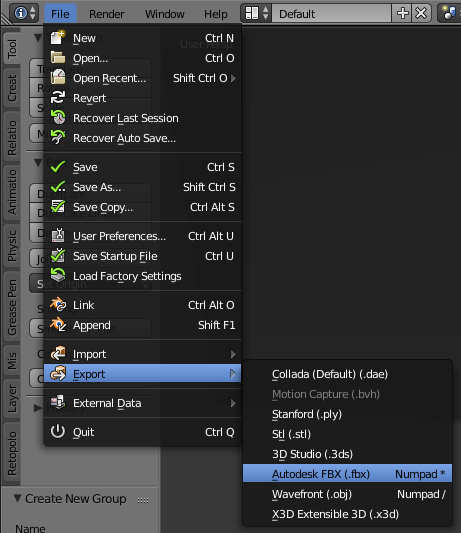
Now its time to export the Asset. With Nothing Selected go to File/Export/Autodesk FBX (.fbx). This will open the Export file navigation window. Find the Destiniton you would like to save the Model. Next Scroll down to the very bottom of the Left hand panel to reveal the FBX exporter settings.


Untick "Baked Animation" and "Batch Own Dir" We wont need these and then Adjust the Scale if need be, For me i used a scale of "40", usually Objects use a scale of 10:1 from Blender to Unreal if using the Default Blender Units. Now to make it export the groups instead of Selected Objects. Change the Batch Mode to "Group" and your Done Press Export and it will export all Groups within the current scene.


Sunday, 22 March 2015

More modular pieces

Well assembling the environment I ran into restrictions on certain layouts because there was no pieces that fit the situation. This is a normal occurrence while designing modular assets so I've created the pieces that where missing.

Structural Beams and multilateral export

I finished creating some beams to add the structural elements to the environment. I decided to create 3 different sizes so customization can be done with out the need for copying and pasting heaps of pieces which I've decided I will do with other simpler pieces, such as the floors and curtain wall pieces.


While creating the beams I added some variations to them such as ropes hanging down using the same method I explain in an earlier post. The rope texture how ever was created in a different one to the structural pieces in decided to use two different materials that reference the different textures saving me the need to add the texture to the "Structural Pieces" Texture Atlas.